
User experience: Difference between revisions
From Annapolis Makerspace Wiki
mNo edit summary |
mNo edit summary |
||
| (22 intermediate revisions by the same user not shown) | |||
| Line 7: | Line 7: | ||
'''Online print scheduling''' | '''Online print scheduling''' | ||
* The [https://teamup.com/ teamup app] is used to schedule member time online for all 3D printers and for the shop's extensive collection of woodworking equipment. Members receive an ID and password for access. | * The [https://teamup.com/ teamup app] is used to schedule member time online for all 3D printers and for the shop's extensive collection of woodworking equipment. Members receive an ID and password for access. | ||
<small>Example Schedule</small> - [[File: TeamupImage.jpg | 600px |]] | |||
* Scheduling the printer is '''required''' for all prints to prevent usage conflicts. The purpose is to communicate the reserved time to other members who also might be interested in using the printer. It especially helps those traveling to the shop to be assured that the printer will be available when they arrive. | * Scheduling the printer is '''required''' for all prints to prevent usage conflicts. The purpose is to communicate the reserved time to other members who also might be interested in using the printer. It especially helps those traveling to the shop to be assured that the printer will be available when they arrive. | ||
| Line 13: | Line 14: | ||
'''Online print control and monitoring''' | '''Online print control and monitoring''' | ||
* The [https://docs.octoprint.org/en/master/ Octoprint app] is used to remotely submit, control, and monitor 3D prints on all our printers, free for members to use. | * The [https://docs.octoprint.org/en/master/ Octoprint app] is used to remotely submit, control, and monitor 3D prints on all our printers, free for members to use. Members are provided an ID and password. | ||
* Members can watch their build in streaming video on their home PC or phone and can start, pause, or cancel a print. The use of Octoprint is encouraged when a member plans to leave a long running print unattended so they can monitor for any failures and correct or stop print. Prints can always be run from the member's USB stick using the local printer LCD's USB port, with Octoprint online viewing but without remote control. With this option, if a print fails the member can only scream at the PC as the print degenerates into a tangled mass. | * Members can watch their build in streaming video on their home PC or phone and can start, pause, or cancel a print. The use of Octoprint is encouraged when a member plans to leave a long running print unattended so they can monitor for any failures and correct or stop print. Prints can always be run from the member's USB stick using the local printer LCD's USB port, with Octoprint online viewing but without remote control. With this option, if a print fails the member can only scream at the PC as the print degenerates into a tangled mass. | ||
<small>Example Octoprint image on a remote PC of a project printing </small> - [[File:Remote video of print in progress.jpg|400px|Remote video of print in progress]] | |||
'''Member instruction and support''' | '''Member instruction and support''' | ||
** Printer operations | ** Printer operations hands-on orientation | ||
*** understand the Makerspace messaging app regarding 3D printer and usage updates | *** understand the Makerspace messaging app regarding 3D printer and usage updates | ||
*** understand direct messaging to other members regarding 3D printing | *** understand direct messaging to other members regarding 3D printing | ||
| Line 28: | Line 29: | ||
*** manage operational problems | *** manage operational problems | ||
*** monitor and control the print online | *** monitor and control the print online | ||
** Introduction to the Prusa Slicer software | ** Online Personal Introduction to the Prusa Slicer software | ||
*** understand project flow - design/export/slice/print | *** understand project flow - design/export/slice/print | ||
*** navigate the Prusa Slicer user interface | *** navigate the Prusa Slicer user interface | ||
| Line 34: | Line 35: | ||
*** learn how to make changes to your objects before printing | *** learn how to make changes to your objects before printing | ||
*** understand how to analyze the sliced object for print quality and speed | *** understand how to analyze the sliced object for print quality and speed | ||
** Collaborate with | ** Collaborate with experienced members for assistance developing your 3D print project | ||
* [https://wiki.makeannapolis.org/index.php/3D_printing See 3D printing Resources] | |||
Latest revision as of 19:59, 18 June 2025
Printer enclosures with HEPA filters
- For the safety of our members, HEPA air filtration is available in the enclosures, especially needed for use with high temperature filaments like ABS, ASA, and PETG.
Wide range of filaments supported
- Our Prusa printers support filament types PLA, PETG, ASA, PC, PVB, ABS, HIPS, PP, FLEX(TPU), PA, CF and user-defined custom types, usually on 1kg rolls or less of 1.75mm diameter filament.
Online print scheduling
- The teamup app is used to schedule member time online for all 3D printers and for the shop's extensive collection of woodworking equipment. Members receive an ID and password for access.
Example Schedule - 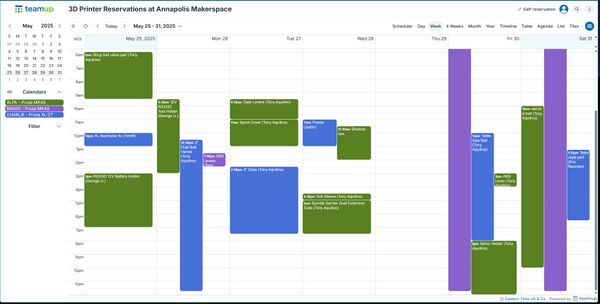

- Scheduling the printer is required for all prints to prevent usage conflicts. The purpose is to communicate the reserved time to other members who also might be interested in using the printer. It especially helps those traveling to the shop to be assured that the printer will be available when they arrive.
- Printers should be scheduled/reserved for the entire time between when the printer is set up for a future remote print with a clean plate with the member's filament loaded, and the future time of print completion. See "Online print control and monitoring" below.
Online print control and monitoring
- The Octoprint app is used to remotely submit, control, and monitor 3D prints on all our printers, free for members to use. Members are provided an ID and password.
- Members can watch their build in streaming video on their home PC or phone and can start, pause, or cancel a print. The use of Octoprint is encouraged when a member plans to leave a long running print unattended so they can monitor for any failures and correct or stop print. Prints can always be run from the member's USB stick using the local printer LCD's USB port, with Octoprint online viewing but without remote control. With this option, if a print fails the member can only scream at the PC as the print degenerates into a tangled mass.
Example Octoprint image on a remote PC of a project printing - 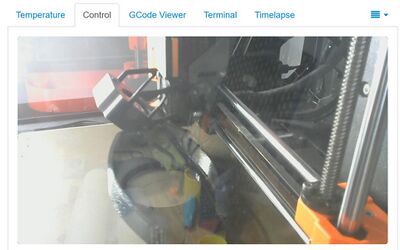

Member instruction and support
- Printer operations hands-on orientation
- understand the Makerspace messaging app regarding 3D printer and usage updates
- understand direct messaging to other members regarding 3D printing
- understand the build plate, filament, and nozzle options
- prepare/clean/start/pause/stop the printer
- load/unload filament
- manage operational problems
- monitor and control the print online
- Online Personal Introduction to the Prusa Slicer software
- understand project flow - design/export/slice/print
- navigate the Prusa Slicer user interface
- understand settings specific for print production, filaments used, and machine differences
- learn how to make changes to your objects before printing
- understand how to analyze the sliced object for print quality and speed
- Collaborate with experienced members for assistance developing your 3D print project
- Printer operations hands-on orientation